Introduction
The Sony WF-C700N headphones provide exceptional audio quality, making it crucial to understand how to pair them correctly to fully enjoy their capabilities. Whether you’re new to wireless headphones or making an upgrade, a smooth setup significantly enhances your user experience. This comprehensive guide will walk you through the process of pairing your Sony WF-C700N headphones with various devices, offer solutions to common pairing problems, and show you how to fine-tune settings for optimum sound quality. With these instructions, you will ensure a seamless connection for uninterrupted music enjoyment.
Unboxing and Initial Setup
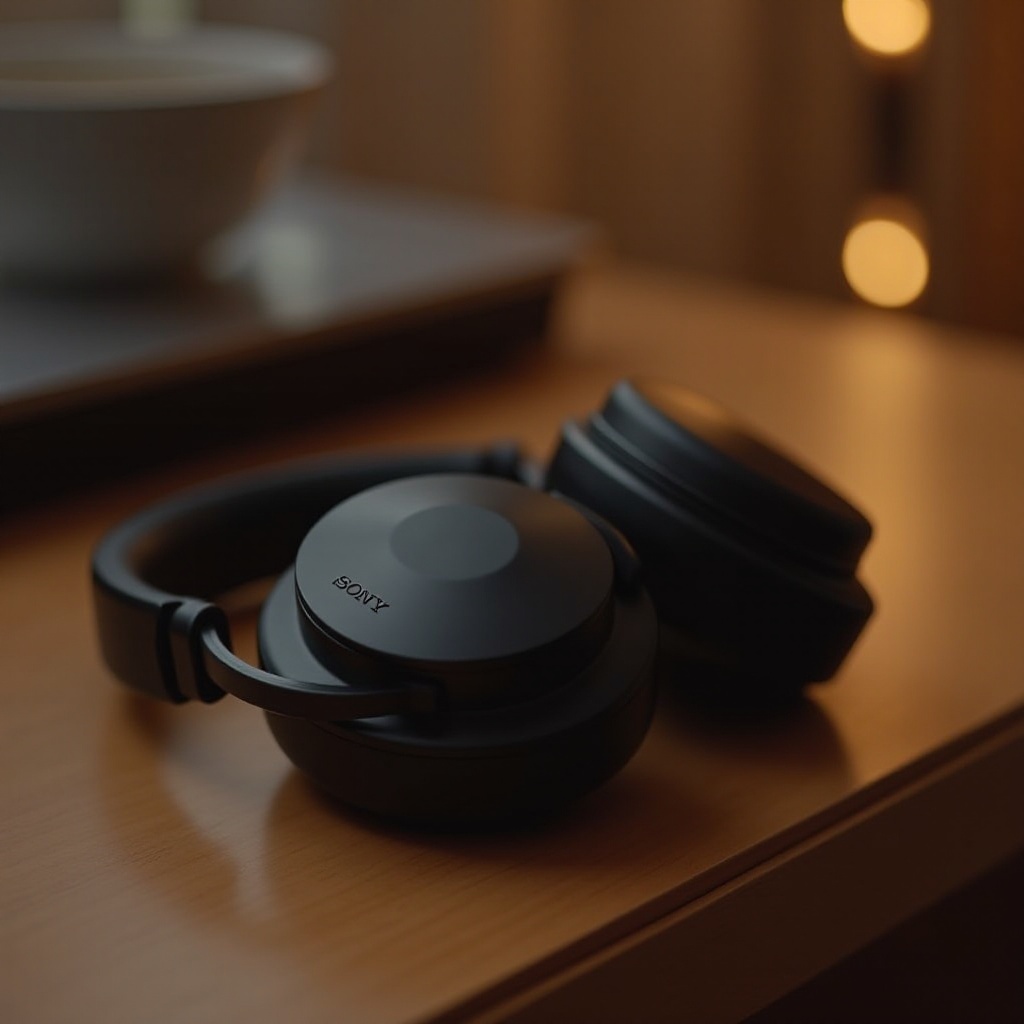
Before embarking on the pairing process, it’s important to acquaint yourself with what comes in the package and perform initial setups.
What’s Included in the Box
In your Sony WF-C700N package, you will find the essentials to get started quickly:
– A pair of WF-C700N headphones
– A USB-C charging cable
– Medium-sized ear tips (pre-installed), along with additional small and large ear tips
– A quick start guide and warranty information
Charging Your Headphones for the First Time
Ensuring a proper initial charge is vital before you begin pairing the headphones with a device:
1. Connect the USB-C charging cable to your headphones and a power source.
2. Charge the headphones for approximately two hours until the indicator lights signal a full charge.
3. Once fully charged, disconnect the charger to prevent overcharging.
After charging, your headphones are ready for the pairing process.
Step-by-Step Guide to Pairing Sony WF-C700N
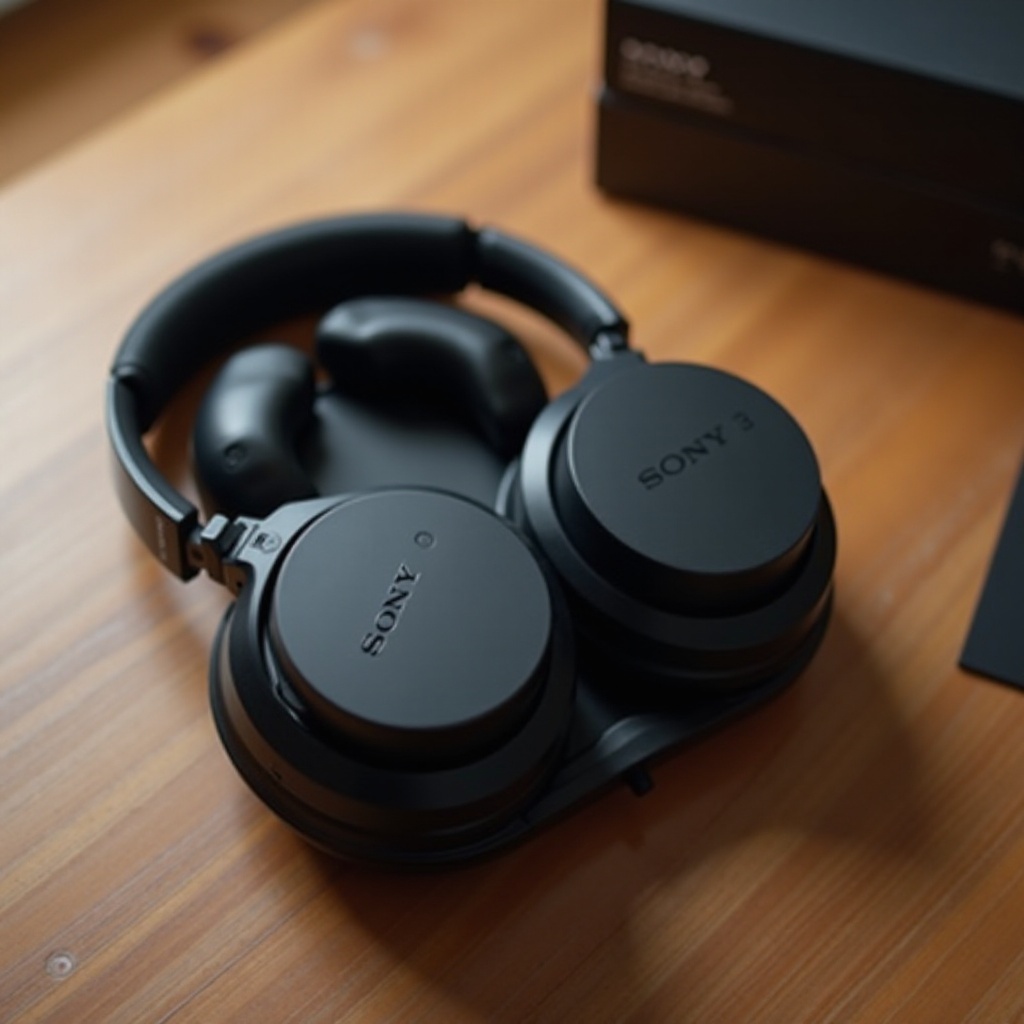
With your headphones charged, you can now move on to connecting them with various devices.
Pairing with Android Devices
- Turn on your headphones by pressing and holding the power button until the LED indicator blinks.
- On your Android device, navigate to Settings and select Bluetooth.
- Enable Bluetooth and search for new devices.
- Select ‘Sony WF-C700N’ from the list of available devices.
- Follow any on-screen prompts to complete the pairing process.
Your headphones should now be connected to your Android device.
Pairing with iOS Devices
- Activate your headphones by pressing the power button until the LED flashes.
- Open Settings on your iOS device and tap Bluetooth.
- Ensure Bluetooth is turned on and wait for your device to detect the headphones.
- Choose ‘Sony WF-C700N’ from the available devices list.
- Confirm any prompts to finalize the connection.
Your Sony WF-C700N is now paired with your iOS device.
Pairing with Windows and Mac OS
- Press the power button on your headphones until the LED blinks, indicating pairing mode.
- In Windows, go to Start > Settings > Devices > Bluetooth & other devices. On a Mac, go to System Preferences > Bluetooth.
- Ensure Bluetooth is enabled, then wait for the computer to detect your headphones.
- Select ‘Sony WF-C700N’ from the list and follow any instructions to complete the pairing.
Once paired, enjoy your favorite audio via your computer.
Troubleshooting Pairing Issues
Sometimes, pairing problems can occur, but these are often straightforward to resolve.
Common Pairing Problems and Solutions
Here are solutions to frequent issues you might encounter:
– Problem: Device cannot find headphones.
– Solution: Ensure the headphones are in pairing mode and your device’s Bluetooth is enabled.
– Problem: No sound despite successful pairing.
– Solution: Check the volume settings or attempt reconnecting the headphones.
Resetting Your Sony WF-C700N
If ongoing issues persist, resetting the headphones might help:
1. Turn off the headphones.
2. Press and hold the power button for about 20 seconds.
3. Release the button once the LED flashes, indicating a successful reset.
Utilizing these troubleshooting tips can resolve most connectivity issues.
Enhancing Your Listening Experience
To get the most out of your Sony WF-C700N, consider further enhancing your audio setup.
Installing the Sony Headphones Connect App
To fully customize your audio experience, download the Sony Headphones Connect app:
1. Search for ‘Sony Headphones Connect’ in your app store and install it.
2. Open the app and follow the on-screen instructions for connecting your headphones.
Customizing Sound Settings
Within the app, you have the ability to tailor sound settings to your personal preferences:
– Use the equalizer to fine-tune the audio profile specifically to your taste.
– Utilize noise cancelling or ambient mode to control the listening environment as needed.
By exploring these features, you maximize the capabilities of your Sony WF-C700N headphones, ensuring enriched sound quality.
Conclusion
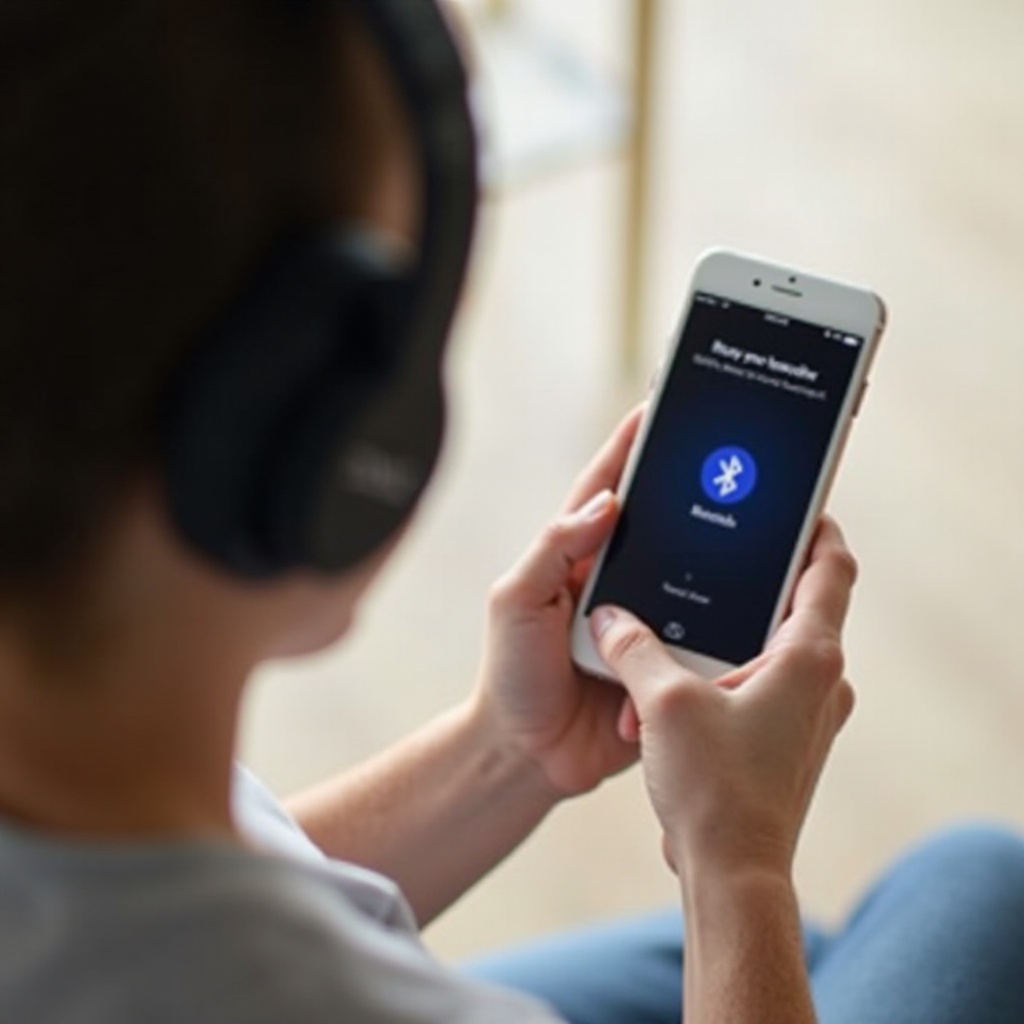
Pairing your Sony WF-C700N headphones is a straightforward task when following these detailed guidelines, which guarantee a seamless connection process across all devices. Utilizing the Sony Headphones Connect app can further enhance your auditory experience by providing customizable sound settings. Moreover, should any pairing issues arise, the troubleshooting steps presented will help swiftly resolve common problems. With everything set up, you’re now ready to indulge in an exceptional audio journey, thanks to your perfectly paired Sony WF-C700N headphones.
Frequently Asked Questions
How do I reset my Sony WF-C700N headphones?
To reset, ensure your headphones are off. Press and hold the power button for approximately 20 seconds, releasing it once the LED flashes, which indicates a reset.
Can the Sony WF-C700N connect to multiple devices?
The Sony WF-C700N supports pairing with multiple devices but can only actively connect to one at a time. Manual switching between devices is required.
What should I do if my Android device won’t pair?
Ensure your headphones are in pairing mode and the Bluetooth on your device is enabled. If problems persist, restart both devices and try again or contact Sony support.