Introduction
Struggling with a dim TV screen can disrupt your viewing pleasure, whether you’re diving into a gripping series or enjoying a movie marathon. Striking the perfect balance of brightness ensures top-notch picture quality without eye strain. This comprehensive guide will help you navigate the process of brightening your TV screen, from understanding the nuances of screen luminance to troubleshooting common issues. With these techniques, you’ll transform your viewing sessions into immersive experiences.
Understanding TV Screen Brightness
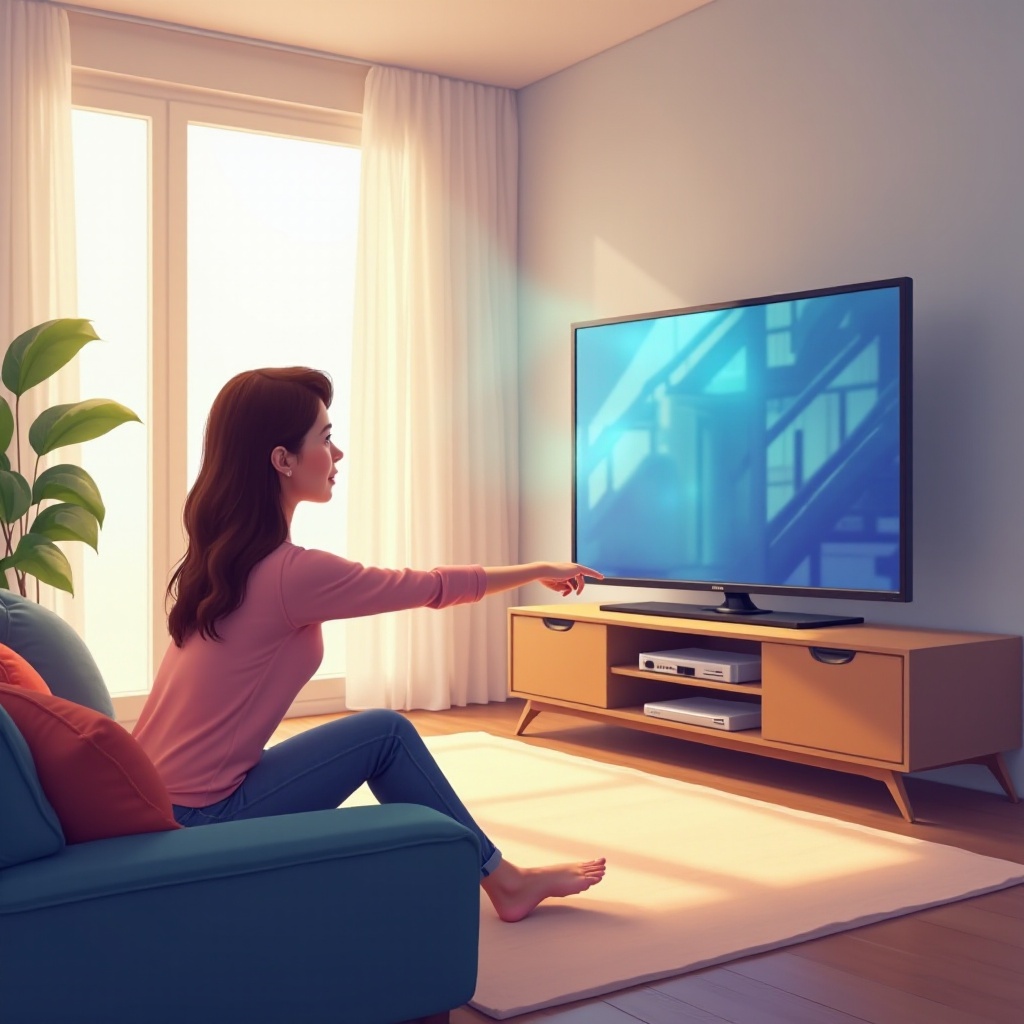
Screen brightness, or luminance, refers to the light your screen emits, directly affecting image quality and your viewing experience. Brightness levels can change based on your environment and technology like LED, OLED, or QLED. Proper calibration can reveal details in dark scenes without washing out brighter areas.
Grasping these intricacies is crucial before making adjustments. Knowing your TV’s specific technology and its impact on brightness helps you fine-tune settings to your liking. This foundational knowledge prepares you for enhancing your viewing experience effectively.
Preliminary Checks Before Adjusting Brightness
Before you adjust the brightness settings on your TV, conduct some basic checks. These steps might resolve perceived brightness issues without deeper adjustments.
- Check Ambient Lighting: Bright room lights can cause glare, leading to a dim appearance. Use dimmable lights or curtains to reduce glare.
- Clean the Screen: Dust and smudges can dull the display. Use a microfiber cloth for cleaning to improve image sharpness.
- Verify Input Source: Ensure high-quality cables and properly functioning connected devices are used. Poor input can lead to low brightness levels.
Performing these checks can sometimes improve screen visibility. If problems persist, adjusting settings is the next step forward.
Adjusting TV Brightness through Settings
After preliminary checks, delve into your TV settings to adjust brightness. While every TV model has distinct paths to these settings, the basic steps remain similar.
- Access the Settings Menu: Use your remote to enter the main menu and find the ‘Display’ or ‘Picture’ settings.
- Locate Brightness Settings: Navigate to ‘Brightness’ settings. In some models, this might be under ‘Advanced Picture’ settings.
- Adjust to Preference: Use the cursor to increase or decrease brightness. Aim for a level where details are clear but not overwhelming.
Manual brightness adjustments allow you to tailor your viewing experience based on content and environment, enhancing your overall enjoyment.
Utilizing Picture Modes for Better Brightness
Modern televisions often feature preset picture modes adjusting several settings, including brightness, to optimize for various scenarios. Understanding and utilizing these modes can substantially boost viewing quality without manual effort.
- Standard Mode: Balances brightness for general viewing, often the factory default.
- Cinema or Movie Mode: Slightly reduces brightness to preserve details in darker scenes, ideal for bright rooms.
- Dynamic or Vivid Mode: Increases brightness and color saturation, suitable for well-lit environments.
Switching between these modes according to your needs can effectively manage brightness and improve image clarity in diverse lighting conditions.
Exploring Advanced Brightness Adjustment Techniques
Beyond basic settings and predefined modes, advanced techniques can further refine your TV’s brightness.
- HDR Settings: High Dynamic Range (HDR) supports enhanced brightness range. Enable HDR for compatible content for a richer picture.
- Backlight Control: Adjusting the backlight changes brightness without altering color, useful in brightly-lit settings.
These advanced techniques significantly enhance brightness levels and overall picture quality, revealing your television’s full potential.
Troubleshooting Common Brightness Issues
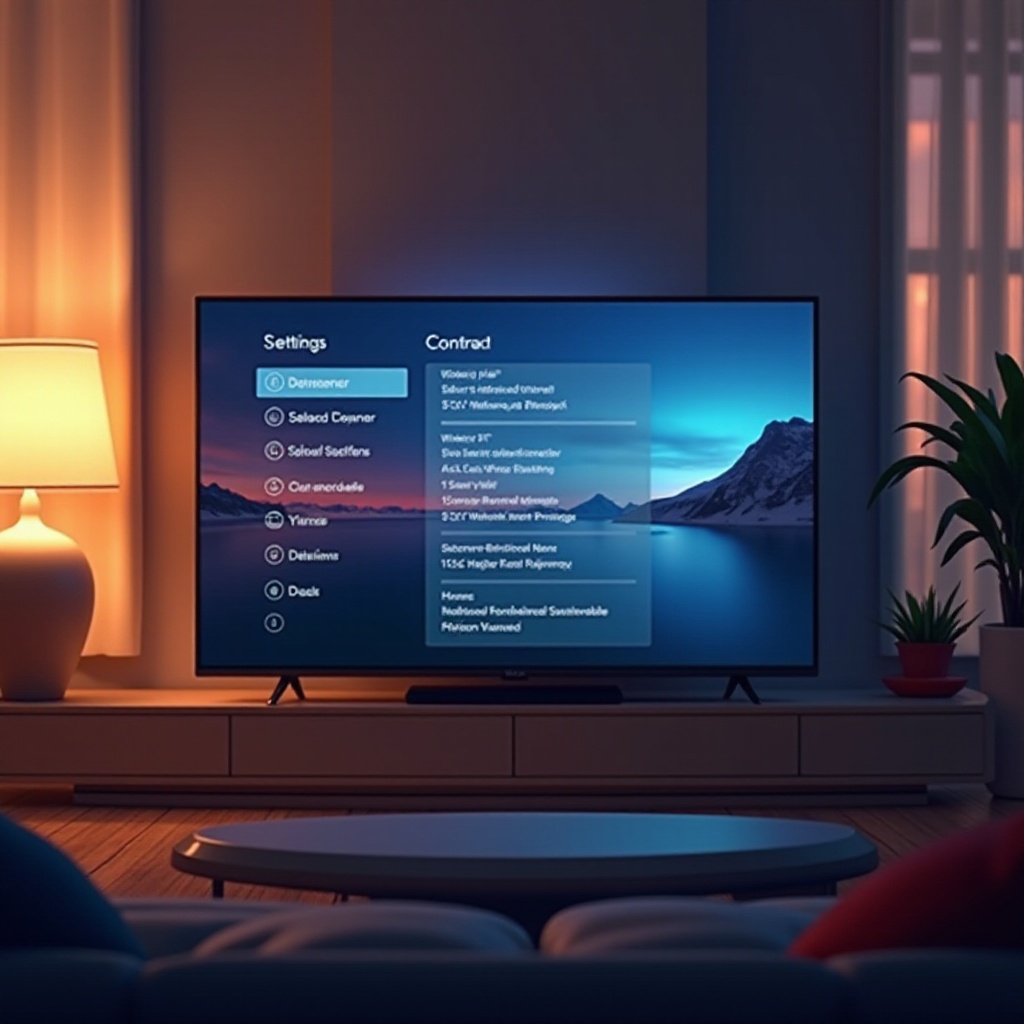
Even with careful adjustments, some brightness issues might persist. Here are common problems and their solutions:
- Sudden Dimming: This may indicate an eco or power-saving mode is active. Check settings and disable if necessary.
- Uneven Brightness: Panel defects or aging backlighting can cause this. A professional look may be needed.
- No Change in Brightness: If adjustments aren’t reflected, your remote or settings menu might malfunction. A reset or firmware update could help.
Addressing these issues ensures consistent brightness and enjoyable viewing.
Conclusion
Adjusting your TV’s brightness need not be daunting. By appreciating the importance of screen luminance, conducting initial checks, leveraging the right settings and modes, and troubleshooting effectively, you significantly enhance your viewing pleasure. Enjoy the clarity and vibrancy your TV can provide with these practical adjustments.
Frequently Asked Questions
Why is my TV screen so dim even at full brightness?
A dim screen despite maximum brightness might be due to ambient light interference or the TV’s energy-saving settings. Check these first.
Does screen brightness affect the lifespan of my TV?
Yes, consistently high brightness can potentially impact lifespan by overworking the backlight. Maintaining a balance is essential for longevity.
Can a software update improve my TV’s brightness?
Software updates may include optimizations for display settings, potentially improving brightness levels. Keep your TV’s software updated for best performance.