Introduction
The Apple Watch has become an essential tool for staying connected, offering a range of functionalities that extend beyond telling time. A frequently asked question by users is, ‘Can you type on the Apple Watch?’ The answer is a resounding yes. This guide explores the various methods available to type on your Apple Watch, such as Scribble, QuickPath, and voice dictation, offering insights into their use and benefits.
Apple Watch Typing Capabilities Overview
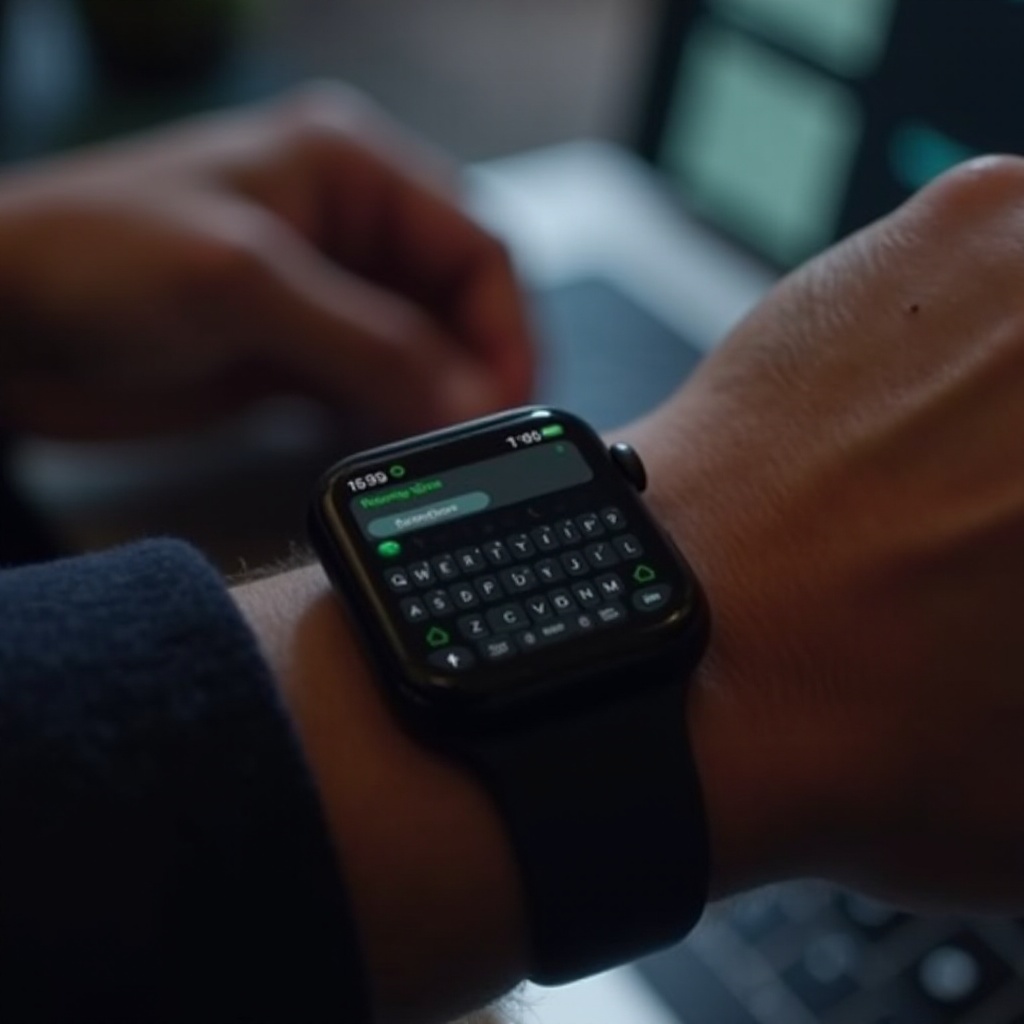
Apple Watch’s typing capabilities have evolved as the device models and watchOS versions have advanced. This smartwatch embraces unique text input methods that cater to its small display. Features like Scribble and QuickPath are at the forefront, allowing seamless text entry without needing to resort to a phone. Scribble converts handwritten letters into typed text, whereas QuickPath deploys swipe typing to enhance speed and ease. Together, these built-in tools ensure that users can stay connected efficiently and flexibly.
Transitioning into practical use, each of these typing methods offers distinct advantages in various contexts. Understanding them enables users to make informed decisions based on their communication needs.
Using Scribble and QuickPath to Type on Apple Watch
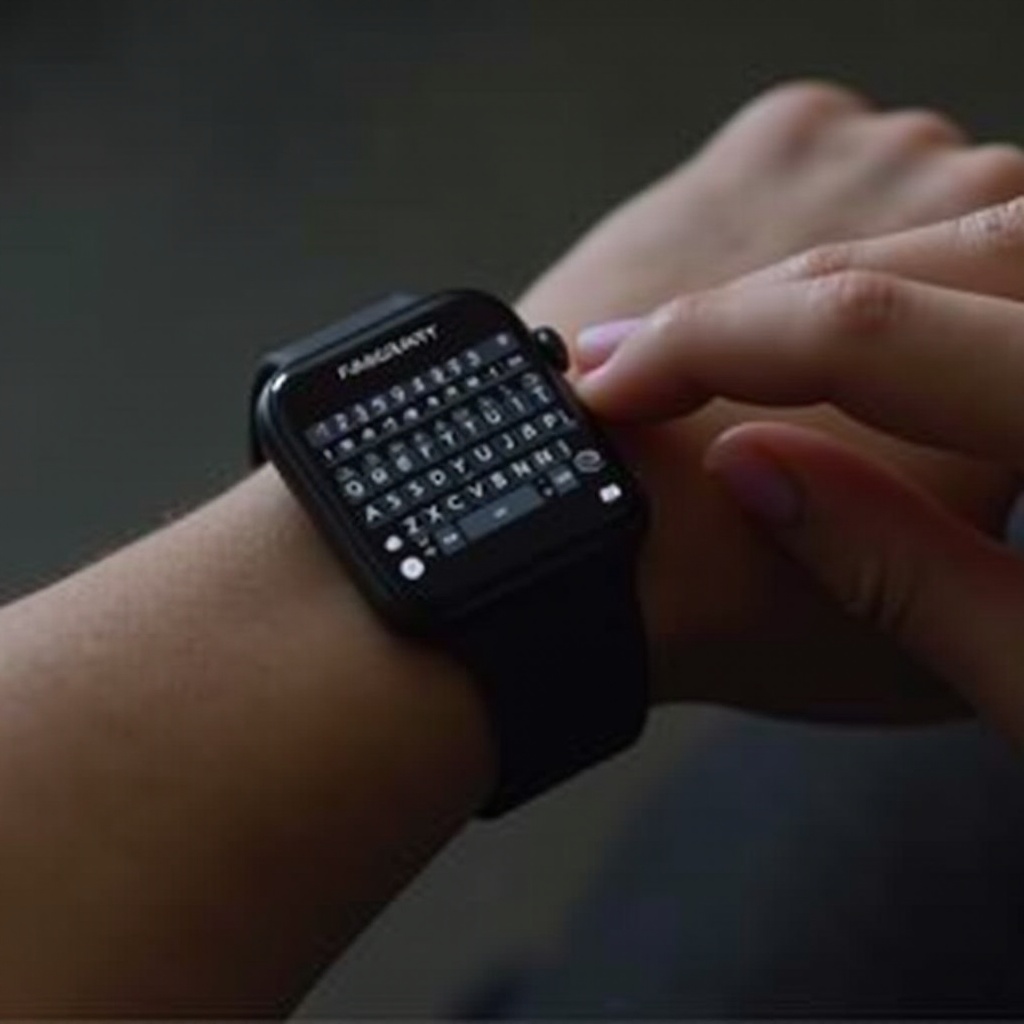
Typing on a confined screen requires innovative approaches. Scribble enables you to draw letters that the watch transforms into text:
- Open any text field-enabled app, such as Messages.
- Tap the field to begin.
- Write letters with your finger.
- Watch as Scribble converts these into text instantly.
QuickPath adds to this by allowing continuous letter tracking for faster messaging, an improvement over individually inputting characters.
How to Use Scribble Effectively
- Write each letter clearly and individually.
- Tap on the converted text to correct any mistakes.
- Adjust suggestions using the digital crown for precision.
Benefits of Using QuickPath
- Enhanced speed by sliding through letters fluidly.
- Lesser taps, reducing wrist strain.
- Improved accuracy over time with consistent practice.
These features redefine how users can approach typing on their devices, adapting to fast-paced lifestyles.
Enhancing Typing with Voice Dictation
When speed is crucial, voice dictation emerges as an invaluable tool. This feature simplifies text entry by converting spoken words into text. By following these steps, users can make the most out of their Apple Watch’s voice capabilities:
- Tap the text field within your choice app.
- Select the microphone icon adjacent to the keyboard.
- Articulate your message.
- Your speech is transcribed into text instantly.
Voice dictation relies on sophisticated algorithms to capture and convert speech, offering a hands-free solution especially beneficial during physical activities or multitasking.
Activating and Using Voice Dictation
- Double-check Siri settings are activated for best performance.
- Speak clearly and at a moderate pace.
- Ensure your environment is quiet for increased accuracy.
Tips for Accurate Voice Commands
- Choose quiet surroundings to minimize background noise.
- Regularly review transcriptions for errors.
- Keep watchOS updated for continued performance enhancement.
Integrating voice dictation into your routine can make smartwatch interaction more dynamic and efficient.
Leveraging Third-Party Apps for Better Typing Experience
While Apple’s native features are remarkable, third-party apps push the capabilities of the Apple Watch further. Apps designed for enhanced typing, like FlickType and Shift Keyboard, introduce user-friendly layouts and increased personalization options:
Popular Apps to Consider
- FlickType: Offers predictive text entry using a full QWERTY keyboard layout.
- Shift Keyboard: Allows swipe gestures for input, supporting multiple languages.
Compatibility and Installation Tips
- Always confirm app compatibility with your watchOS version prior to downloading.
- Install through App Store directly on your Apple Watch.
- Keep an eye on app updates and reviews for the best user experience.
These applications are tools that not only complement but elevate the smartwatch experience by tailoring it to each user’s typing style and needs.
Future Trends in Apple Watch Typing Features
The landscape of smartwatch technology is evolving rapidly, with typing features set to become more sophisticated. Anticipated features include advanced haptic feedback systems that mimic the feel of pressing actual keys, and AI-driven predictive text enhancements that better understand context. Such innovations would make typing on small screens even more intuitive and seamless.
As developers push these frontiers, these advancements will further solidify the Apple Watch’s position not only as a gadget but as an indispensable communication device.
Conclusion
Typing on the Apple Watch has reached new heights with the integration of tools like Scribble, QuickPath, and voice dictation. Combined with customizable third-party apps, users have an array of options ensuring efficient communication. Keeping abreast of future developments will enrich user interaction, solidifying your Apple Watch as an essential part of your connected lifestyle.
Frequently Asked Questions
Can I Install a Full Keyboard on My Apple Watch?
Yes, you can use third-party apps like FlickType and Shift Keyboard to gain full keyboard functionality.
How Do I Customize Quick Replies?
To customize Quick Replies, open the Apple Watch app on your iPhone, navigate to Messages, and tap ‘Default Replies’ to make changes.
Is Typing on Apple Watch Secure?
Yes, Apple ensures security with robust measures like end-to-end encryption to protect messages and interactions.