Introduction
The Fire TV has become a central piece of entertainment in many households, offering a vast range of streaming options right on your television. But like any other tech device, it occasionally runs into problems that a simple restart can fix. Restarting your Fire TV can resolve common issues, improve performance, and enhance your viewing experience. This comprehensive guide will examine the reasons for restarting your Fire TV and provide practical steps to keep it running optimally.
Why Restarting Your Fire TV Matters
Restarting your Fire TV isn’t merely a temporary fix; it’s a critical practice in maintaining device efficiency. Regular restarts can address frequent glitches, such as unresponsive applications, buffering videos, and general sluggishness. These issues often arise from cached data, accumulating over time and affecting performance. By initiating a restart, you clear this data, allowing the system to refresh and operate smoothly again. Comprehending these benefits helps maintain a seamless streaming experience, making the following steps more effective.
How to Restart Your Fire TV
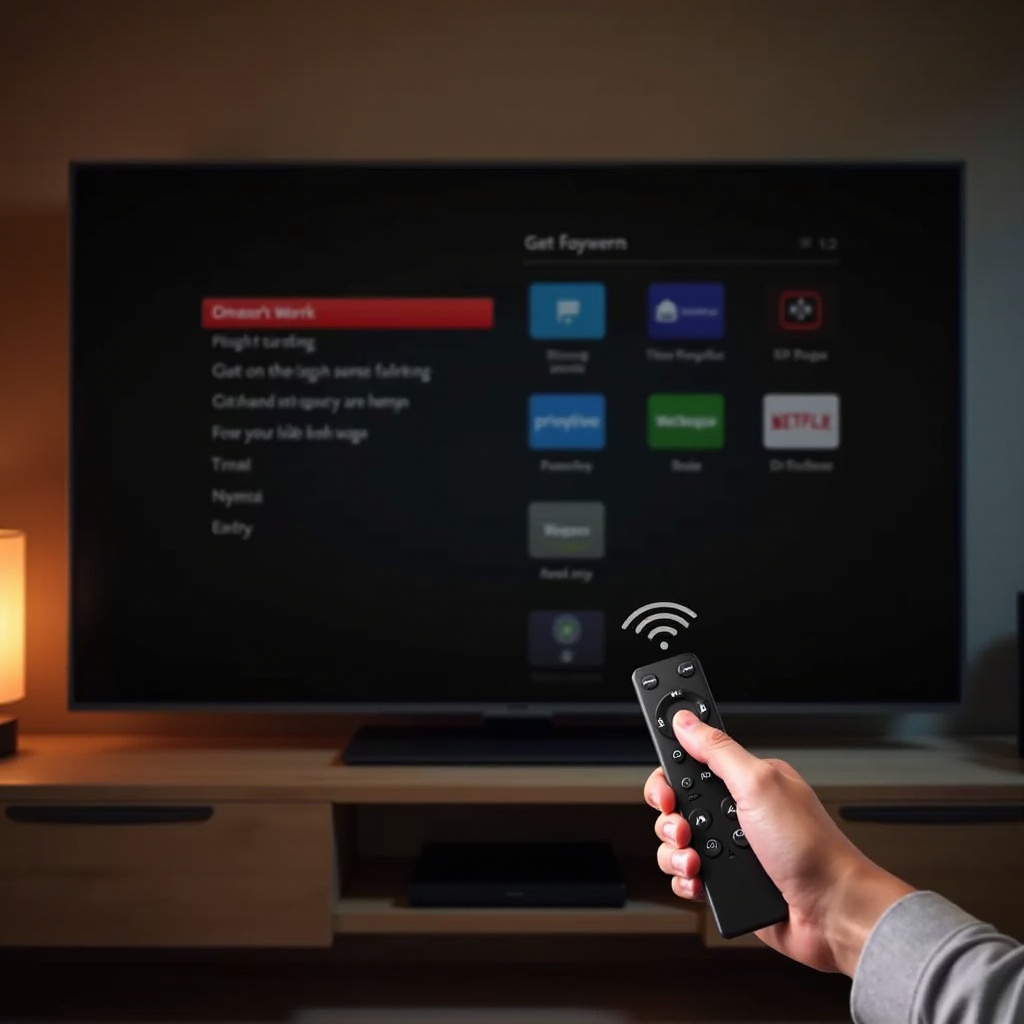
Knowing how to restart your Fire TV correctly can prevent minor issues from becoming significant problems. Here are the methods:
- Using the Settings Menu:
- Navigate to the ‘Home’ menu.
- Select ‘Settings.
- Scroll right to ‘My Fire TV.
-
Click on ‘Restart’ and confirm when prompted.
-
Restarting Without a Remote:
- Locate the power button on the Fire TV device.
- Press and hold it for 10 seconds until it powers off.
- Wait a moment and press the button again to restart.
In instances where your device is entirely unresponsive, unplugging it from the power source can serve as a manual reset. Ensuring you know these methods protects against unnecessary disruptions and maintains streaming efficiency.
Troubleshooting Common Fire TV Issues
While a restart often resolves typical problems, some issues require further attention. Here’s how to deal with some common challenges:
- Frozen Screens & Unresponsive Apps:
- Force-Stopping Unresponsive Apps:
- Go to ‘Settings.
- Choose ‘Applications.
- Select ‘Manage Installed Applications.
- Highlight the problematic app and select ‘Force Stop.
- Steps for Frozen Screens: A manual restart by unplugging the power may be necessary if the screen remains stuck.
Proactively addressing these issues ensures steps for maintenance are more effective.
Maintaining Your Fire TV for Long-Term Use
Proper maintenance of your Fire TV brings considerable benefits, notably prolonging its lifespan and enhancing performance. Consider these maintenance tips:
-
Keep Your Fire TV Updated: Regularly install Amazon’s latest software updates for new features and security improvements.
-
Manage Storage and App Performance:
- Clear Cached Data: Regularly clearing cache via ‘Settings’ > ‘Applications’ > ‘Manage Installed Applications’ > ‘Clear Cache’ minimizes slowdowns.
- Uninstall Unused Apps: Free up valuable space by uninstalling apps you no longer use, found under ‘Manage Installed Applications.
These maintenance practices are interconnected with restarting your device, ensuring a consistent, high-performing experience.
Conclusion
Regularly restarting your Fire TV isn’t just about troubleshooting; it’s a strategic move for ongoing performance improvement. Pairing restarts with effective maintenance practices, like clearing cache and software updates, ensures your device operates at peak efficiency. Integrating these habits into your routine will help sidestep potential frustrations, allowing you to focus on maximizing your entertainment.
Frequently Asked Questions
What should I do if my Fire TV doesn’t restart?
Try unplugging the device from power, wait a few seconds, and plug it back in. If issues persist, contact Amazon support for assistance.
How often should I restart my Fire TV for best performance?
Restart your Fire TV at least once a week. Regular restarts clear cache and refresh system processes, ensuring optimal performance.
Can restarting solve Wi-Fi connectivity issues on my Fire TV?
Yes, restarting can help by refreshing the network connection. If problems continue, check your router or contact your ISP.