
Emergency SOS on the iPhone is designed to quickly get you help in urgent situations. With a few presses, you can contact emergency services or notify your preferred contacts immediately. However, the convenience that contributes to its effectiveness can also lead to accidental activations, causing unnecessary disruptions. Understanding how to manage and stop this feature ensures both your safety and peace of mind.
Introduction
The Emergency SOS feature is a powerful tool that helps safeguard users by offering quick access to help. It connects you with emergency services and alerts your emergency contacts at the touch of a button. Nevertheless, its ease of use means accidental activations are common, leading to false alarms and sometimes distress among contacts. Knowing how to control and disable this feature when it is not needed can help prevent these occurrences.
Understanding the Emergency SOS Feature
iPhones are equipped with Emergency SOS to offer swift assistance during crises. Triggered by pressing the side button along with a volume button, this feature acts as a lifeline in real emergencies. But often, mishaps, such as pressing the buttons inadvertently during other phone operations, lead to unmeant activations. This understanding empowers users to reduce false triggers by awareness of these mechanisms and employing preventive measures.

How to Stop Emergency SOS Once It’s Activated
Stopping an active Emergency SOS call can be urgent if activated by mistake. When the SOS is triggered but not yet connected, quickly tap ‘Cancel’ on the countdown to stop the call. If the call connects, end it swiftly, but be prepared for a possible call back from emergency services to confirm safety. This action requires promptness while maintaining clarity for resolving the false alarm situation.
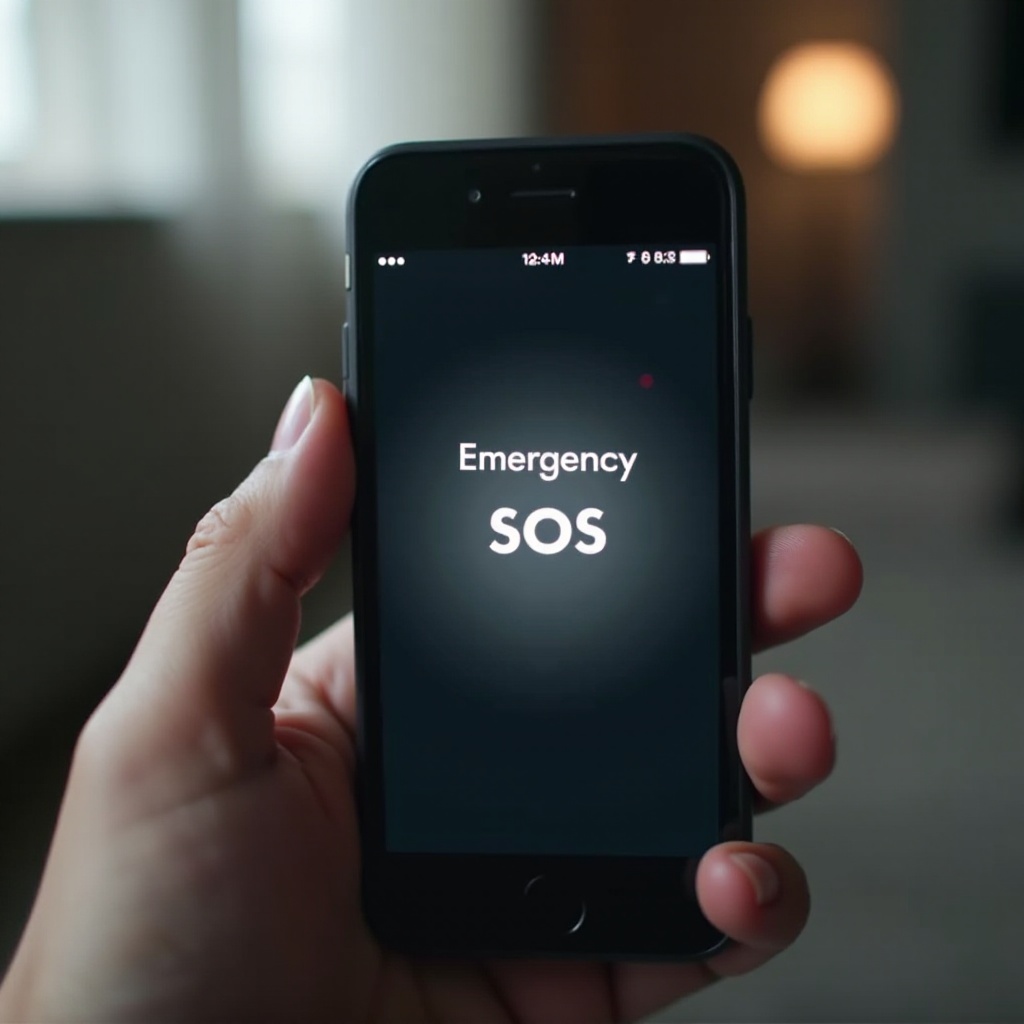
Turning Off Automatic Emergency SOS Features
To reduce unintentional Emergency SOS activations, consider disabling the automatic features:
- Navigate to ‘Settings’ on your iPhone.
- Scroll and tap ‘Emergency SOS’.
- Toggle off ‘Call with Hold’.
- Disable ‘Auto Call’.
- Ensure that ‘Countdown Sound’ is off to prevent unsuspected activations.
By customizing these settings, you can utilize the essential advantages of Emergency SOS without the disruptions of inadvertent calls.
Using Emergency Features Without Automatic SOS Activation
It’s crucial to adapt emergency functionalities without automatic triggers. Manually setting up emergency contacts and the iPhone Medical ID provides critical information without needing auto SOS:
- Use the Health app on your iPhone to set up a Medical ID. It will store crucial health data accessible by emergency personnel.
- Assign emergency contacts via your Medical ID, ensuring they can be reached during emergencies without auto-call activation.
These strategies allow your device to remain prepared for emergencies without frequent accidental invocations.
Troubleshooting Common SOS Issues
Accidental SOS triggers stem from how you handle your device. Here are some troubleshooting steps:
- Inspect your phone case to ensure it doesn’t press the buttons inadvertently.
- Regularly review settings after software updates, as they might reset configurations.
- Be cautious in handling your device to avoid unintended button presses.
With consistent awareness and regular settings checks, you can prevent unscheduled calls, keeping emergency services available for genuine needs.
Balancing Safety and Convenience
Maintaining a balance between safety and convenience on your iPhone’s Emergency SOS feature ensures you use it effectively. Decide which settings suit your usage habits, enabling essential functions without unwanted activations. Stay informed on how these features apply to your lifestyle needs and make adjustments accordingly.
Conclusion
Effectively managing the Emergency SOS feature simplifies your iPhone use while preserving its vital functionality. Customizing settings according to personal preferences and practicing caution align the feature’s utility seamlessly with your everyday routine. This careful setup assists in minimizing disruptions while ensuring you’re always ready for emergencies.
Frequently Asked Questions
How can I cancel an Emergency SOS call once it’s started?
If the call isn’t connected, tap ‘Cancel’ during the countdown. If it connects, explain the mistake to the operator and follow their directions.
What should I do if my iPhone continues to trigger SOS by itself?
Check for stuck buttons or unsuitable phone cases, and review your Emergency SOS settings to ensure nothing is enabling auto calls.
Is it safe to disable the Emergency SOS feature on my iPhone?
Disabling automatic SOS features may be safe if you frequently experience accidental calls, but maintain emergency readiness through other means like the Medical ID.