
Introduction
Efficiently managing storage on your iPad ensures it performs well and has room for new apps, photos, and software updates. Deleting unnecessary files regularly is key to maintaining a clutter-free and functional device. This guide provides clear steps and helpful tips for deleting files on your iPad efficiently.

Understanding iPad Storage
Before jumping into the deletion process, it’s vital to understand how storage gets utilized on your iPad. Various files such as apps, documents, photos, and cached data accumulate over time, taking a toll on available space. By pinpointing what occupies the most space, you can make informed decisions about which files to delete first and manage storage more effectively.
Storage Hogging Files
Large apps, especially those with hefty cache data, can consume a significant amount of storage. Photos and videos also take up considerable space. Additionally, downloaded content like music, podcasts, or eBooks can add up quickly. Identifying these heavyweights is crucial to effective file management.
Familiarity with the Files App
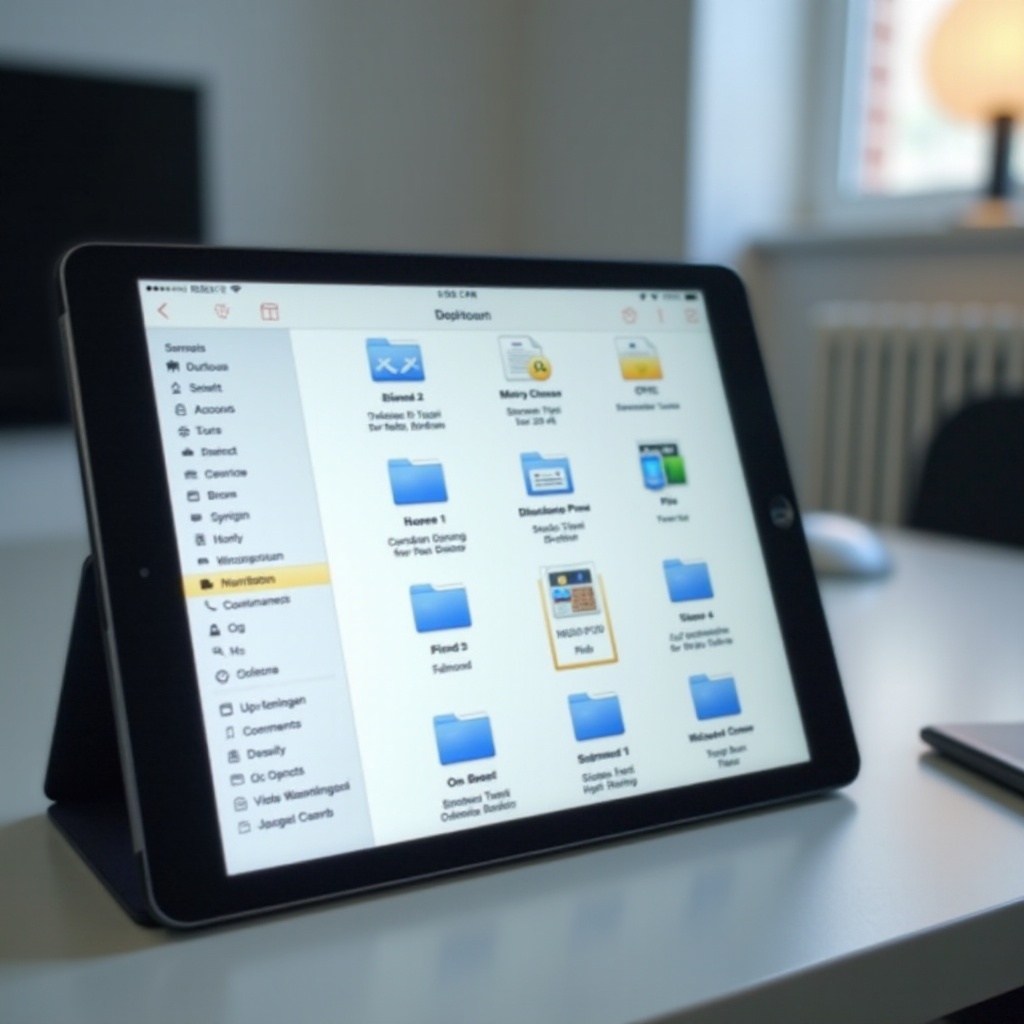
The Files app on the iPad acts as a centralized location for managing documents. Becoming familiar with this app is essential for successfully locating and deleting unneeded files. The interface makes accessing documents across iCloud and third-party services straightforward.
Step-by-Step Guide to Deleting Files
Having identified what’s filling up your iPad storage, the next step is deleting these files. Here’s how you can effectively remove files from your device:
- Deleting Photos and Videos:
- Launch the Photos app and navigate to specific albums.
- Tap the photos or videos you wish to remove.
-
Confirm deletion by tapping the trash icon.
-
Removing App Data and Documents:
- Access the Files app and locate documents for deletion.
- Long-press the desired file and select ‘Delete.
-
For app data removal, access the app’s settings and clear data when options are available.
-
Clearing Browser Cache:
- Open ‘Settings’ and navigate to Safari.
- Click on ‘Clear History and Website Data’ to free up storage used by the cache.
Deleting files that you no longer need not only creates more space but also keeps your iPad functioning optimally, allowing you to enjoy new files and applications without hassle.
Advanced Techniques for Storage Management
After mastering basic deletions, you can delve into more advanced techniques to maximize available space and optimize your iPad’s storage.
Offloading Unused Apps
Take advantage of features to offload apps you seldom use. This process removes the app while retaining the data, making it easy to reinstall later if needed.
– Navigate to Settings > General > iPhone/iPad Storage.
– Locate the relevant app and choose ‘Offload App.
Leveraging Cloud Storage
Cloud services such as iCloud, Google Drive, and Dropbox help reduce reliance on local storage. Move files to the cloud that don’t need offline access, liberating space on your device.
Troubleshooting Common Issues
Even with thorough deletion, some files may resist removal, or space may not seem to free up. Here’s how you can address these issues:
Deletion-Resistant Files
Ensure the file isn’t currently used by any open apps. Check for ongoing syncing processes and consider restarting your iPad to resolve these issues.
Space Not Freeing
If storage isn’t freeing up, cached data could be to blame. Consider using ‘Offload Unused Apps’ or employing a cleaning tool to aid in removing unnecessary data remnants.

Best Practices for Regular Maintenance
Preventing clutter doesn’t have to be challenging. Incorporate these practices into your routine to maintain a smoothly running device.
Schedule Monthly Clean-ups
Regularly evaluate storage and delete files that are no longer necessary. Examine app usage to identify any redundancies.
Monitor Storage Levels
Frequent monitoring via storage settings helps identify potential issues before they escalate, enabling you to manage your iPad’s storage effectively.
Conclusion
With the proper strategies, managing your iPad’s storage effectively and deleting files doesn’t require significant effort. By following the outlined steps and tips, you keep your device running smoothly and clutter-free, ready for new content and apps.
Frequently Asked Questions
Can deleted files be recovered on an iPad?
Deleted files usually can’t be recovered unless you’ve backed them up. Regular backups can protect against complete data loss.
How often should I clear my iPad storage?
To maintain optimal performance, consider checking and clearing storage monthly.
Will deleting files impact app data or settings?
Deleting files typically won’t alter app settings or data unless you delete it specifically within the app. Always ensure critical data is backed up before removal.