Introduction
Bose QuietComfort headphones deliver exceptional sound quality with industry-leading noise cancellation. To ensure you get the most out of these features, connecting them properly to your iPhone is essential. This guide walks you through the steps for a seamless connection, from setup to troubleshooting, and provides tips to optimize your listening experience.
Understanding Your Bose QuietComfort Headphones
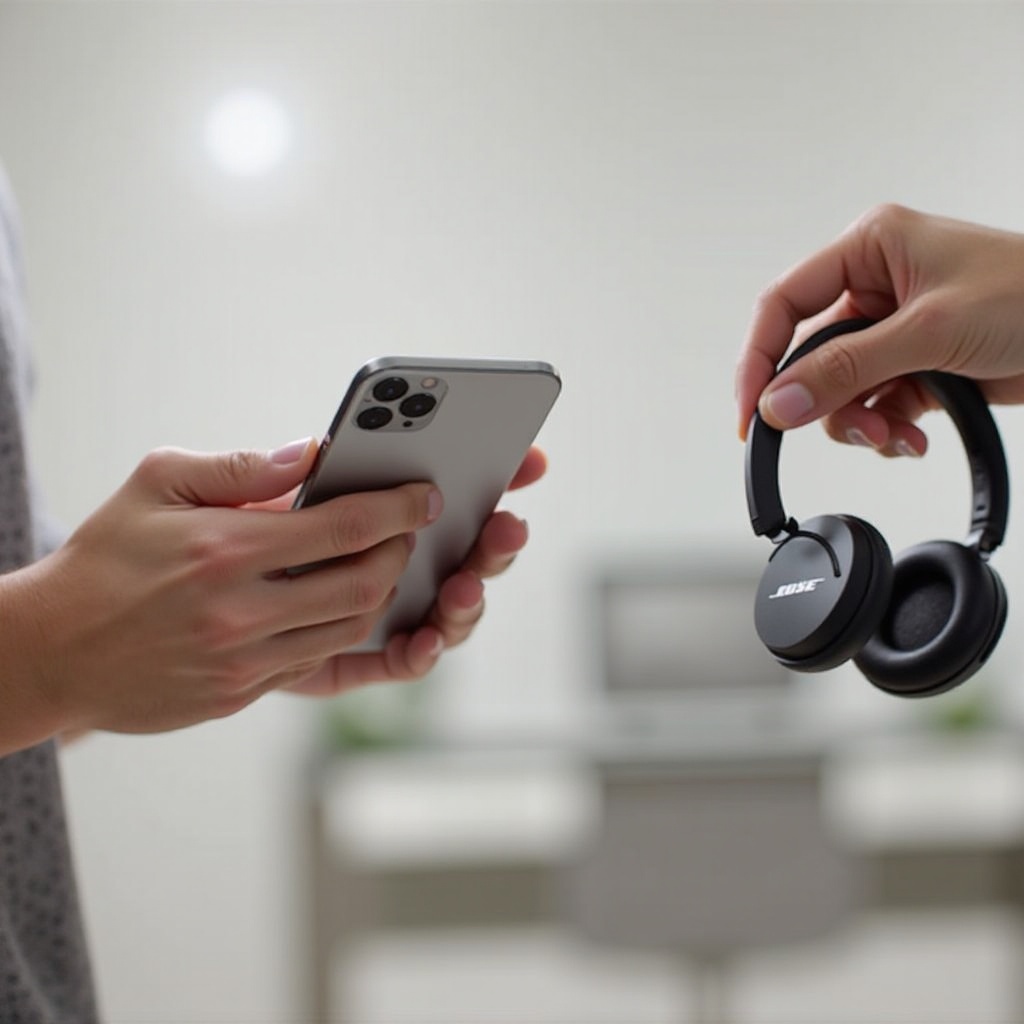
Knowing the features of your Bose QuietComfort headphones enhances the connection process. These headphones are equipped with advanced noise-canceling technology and Bluetooth capability, making them an excellent accessory for your iPhone. Understanding these functionalities allows you to optimize your listening session.
Bluetooth technology ensures a wireless, flexible connection. These headphones are compatible with most iPhone models, ensuring you enjoy high-quality sound. Familiarity with these features will simplify the connection process and help you appreciate the headphones’ full potential.
Preparing Your Devices
Preparation is key to a successful connection. Begin by charging your Bose QuietComfort headphones fully. A well-charged battery prevents disconnection during the setup.
Update your iPhone to the latest iOS version, as updates often include essential enhancements for Bluetooth performance. Keeping your iPhone software up to date ensures better connectivity and access to all available features on both the headphones and the device. With both devices prepped, you are ready to move on to the next stage.
Step-by-Step Guide to Connecting via Bluetooth
Follow these steps to connect your Bose QuietComfort headphones to your iPhone effortlessly:
-
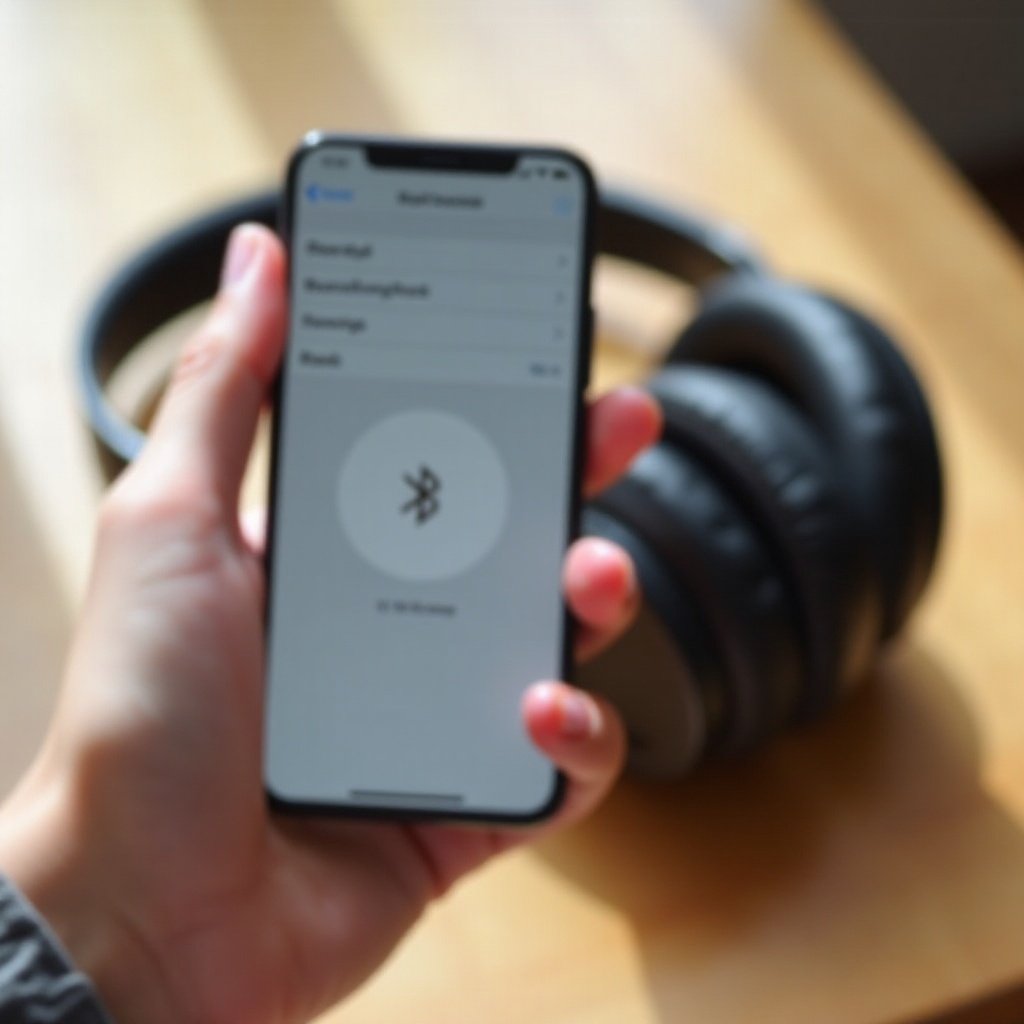
Enable Bluetooth on your iPhone: Navigate to ‘Settings,’ select ‘Bluetooth,’ and turn it on. This makes your iPhone visible to nearby Bluetooth devices.
-
Activate Pairing Mode on Your Headphones: Turn on your Bose QuietComfort headphones by pressing the power button. Hold it until the display shows a pairing indicator, or you hear ‘Ready to pair.
-
Connect to the iPhone: In the Bluetooth menu on your iPhone, find ‘Bose QC’ or ‘Bose QuietComfort’ under ‘Other Devices.’ Tap on it to start pairing. Successful connection will be indicated by a ‘Connected’ message.
-
Confirm Successful Pairing: Test the connection by playing audio on your iPhone. If sound is smooth and uninterrupted through the headphones, your devices are successfully paired.
Troubleshoot only if you encounter any issues, as seamless setup is typical with these headphones.
Using the Bose Connect App for Enhanced Features
The Bose Connect app enriches your headphone experience by unlocking extra features. Download and install the app from the App Store to get started. Open it and follow the instructions to set up your headphones.
The benefits of using the app include:
- Firmware Updates: Access the latest features and performance improvements by updating your headphones’ firmware.
- Customization: Adjust audio settings and noise cancellation levels to suit your preferences.
- Device Management: Easily manage connections between multiple devices.
This app maximizes your Bose QuietComfort capabilities, providing control over your listening experience.
Troubleshooting Common Connection Issues
Even with a seamless setup, connection issues can arise. Address these common problems with the following solutions:
- Connection Failures: Ensure both Bluetooth settings are active on your devices. Restart your iPhone and headphones if needed.
- Interference: Move your devices away from sources of electronic interference that might disrupt the Bluetooth signal.
- Audio Quality Issues: Poor sound quality often results from interference or low battery. Charge both devices and check for obstructions.
- Resetting Connections: For persistent issues, reset Bluetooth connections by briefly turning off both devices and reconnecting.
Upon troubleshooting, exploring your headphones’ features will further enhance your audio experience.
Maximizing Your Listening Experience
Discover features like noise cancellation and audio customization through the Bose Connect app to enhance listening:
- Noise Cancellation: Activate or adjust levels for the ideal environment using the app.
- Custom Sound Settings: Personalize sound profiles for different activities, whether it’s music, podcasts, or calls.
These features ensure optimal comfort and sound quality wherever you are, whether at home or while traveling. Mastery of these options elevates your overall usage and enjoyment.
Conclusion
Connecting your Bose QuietComfort headphones to an iPhone transforms your audio experience with superior sound and convenience. Through careful preparation and adherence to connection and troubleshooting steps, you can enjoy the full potential of these headphones. With an understanding of the features and the use of the Bose Connect app, you unlock an enriched auditory experience that Bose QuietComfort headphones are designed to deliver.
Frequently Asked Questions
How do I reset the Bluetooth connection on my Bose QuietComfort headphones?
To reset, turn off both the headphones and iPhone. Then turn them back on to refresh the Bluetooth connection.
Can I connect multiple devices to my Bose QuietComfort headphones simultaneously?
Yes, Bose QuietComfort headphones support multipoint connections, allowing them to pair with two devices at the same time.
What should I do if the sound quality is poor after connecting to my iPhone?
Ensure both devices are charged and check for obstructions. Use the Bose Connect app to adjust sound settings and noise cancellation.