Introduction
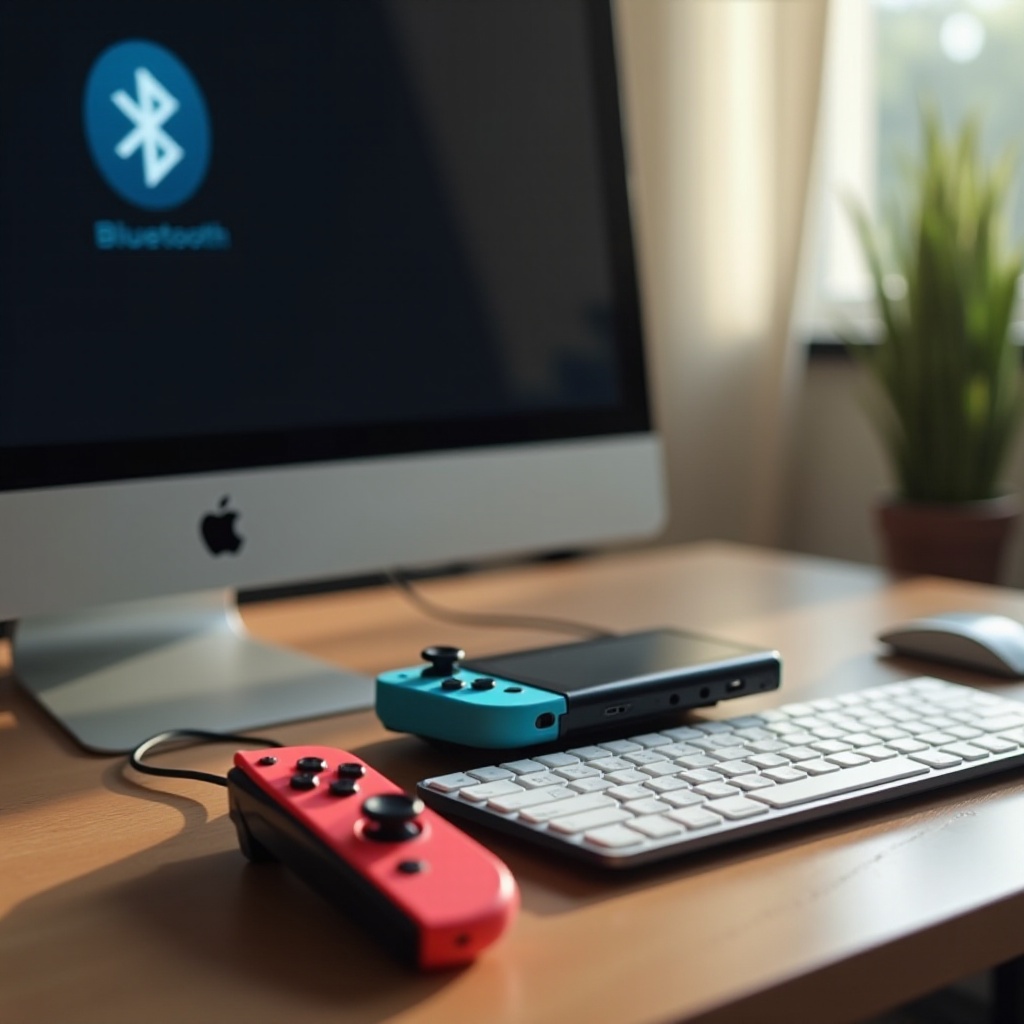
Gaming on a PC can offer incredible graphics and a diverse range of games, but the experience completely transforms when you use the right controller. Nintendo Switch controllers are renowned for their ergonomic design and multi-functionality. If you want to know if these controllers can work flawlessly with your PC, you’re in the right place. This guide will help you connect, customize, and troubleshoot your Nintendo Switch controllers on a PC, ensuring an elevated gaming experience.
Understanding Nintendo Switch Controllers
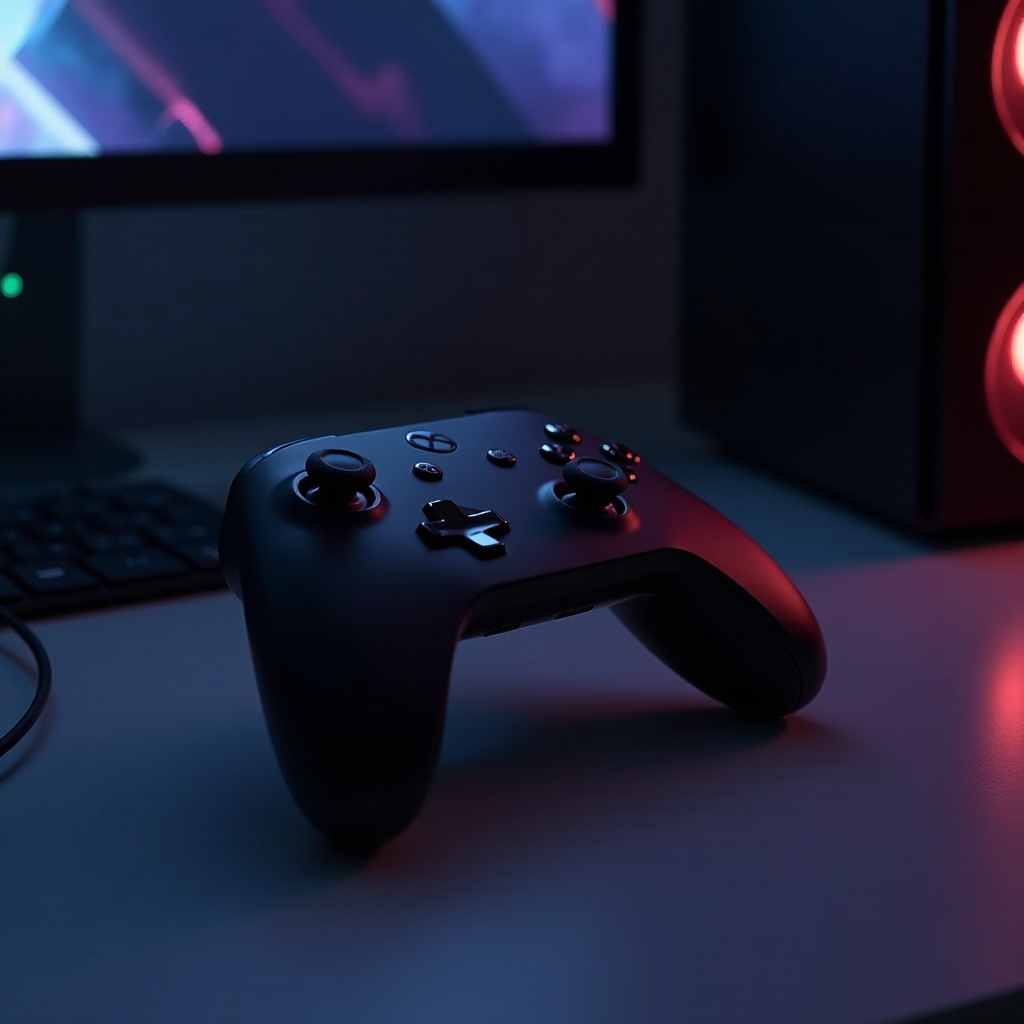
Nintendo offers two main types of controllers: the Pro Controller and the Joy-Cons, each with distinct features.
Overview of Nintendo Switch Pro Controller
The Pro Controller is a more traditional gamepad offering a comfortable grip and familiar button layout, perfect for extended gaming sessions. With its sturdy design and long battery life, it remains a favorite among serious gamers.
Overview of Joy-Cons
Joy-Cons are the detachable controllers inherent to the Nintendo Switch console. Their adaptability allows for individual horizontal gaming or paired for a more conventional grip, making them versatile for various gaming styles.
With a good understanding of these controllers, let’s see how compatible they are with PC systems.
Compatibility of Switch Controllers with PCs
Your Nintendo Switch controllers can indeed connect to a PC, but several factors like compatibility and setup need attention.
Operating Systems Compatibility
Switch controllers can work with Windows, macOS, and Linux. For Windows users, the connection process is typically straightforward, especially if your PC supports Bluetooth. For macOS users, additional software might be required.
Necessary Software and Drivers
To ensure a seamless connection, your PC needs Bluetooth 4.0 or higher. While Windows 10 and newer typically recognize these controllers natively, third-party software like Steam or additional drivers could enhance performance on all systems.
Having this compatibility knowledge, you can proceed to connect your controllers and personalize their settings based on your preferences.
How to Connect a Switch Controller to Your PC
Getting your Nintendo Switch controller set up on your PC is straightforward with these steps:
Wired Connection Setup
- Connect your Pro Controller to the PC using a USB-C cable.
- Your PC should automatically recognize the controller. If it does not, ensure your USB drivers and ports are functioning properly.
Bluetooth Connection Guide
- Ensure your PC has Bluetooth enabled.
- On the controller, press and hold the Sync button until the lights begin flashing.
- On your PC, navigate to Bluetooth settings and select ‘Add a Bluetooth Device.
- Choose your controller from the list and pair it.
With the connection ready, you can enhance your gaming experience by adjusting the controller settings to match your play style.
Customizing Your Nintendo Switch Controller Settings
Once connected, tailoring your Nintendo Switch controller to your playstyle can boost your gaming comfort and effectiveness.
Using Steam to Configure Settings
Steam’s Big Picture mode offers extensive controller configuration:
- Open Steam and enter Big Picture Mode.
- Navigate to ‘Settings,’ then ‘Controller Settings.
- Here, customize button layouts and sensitivity, and create unique profiles for different games.
Third-Party Software Options
For non-Steam games or additional customization, software like DS4Windows can be invaluable:
- Install and start DS4Windows.
- Follow the setup instructions to map buttons and adjust sensitivity.
Customizing your controller enriches your gaming experience. However, as with any tech setup, issues may arise. Here’s how to address them.
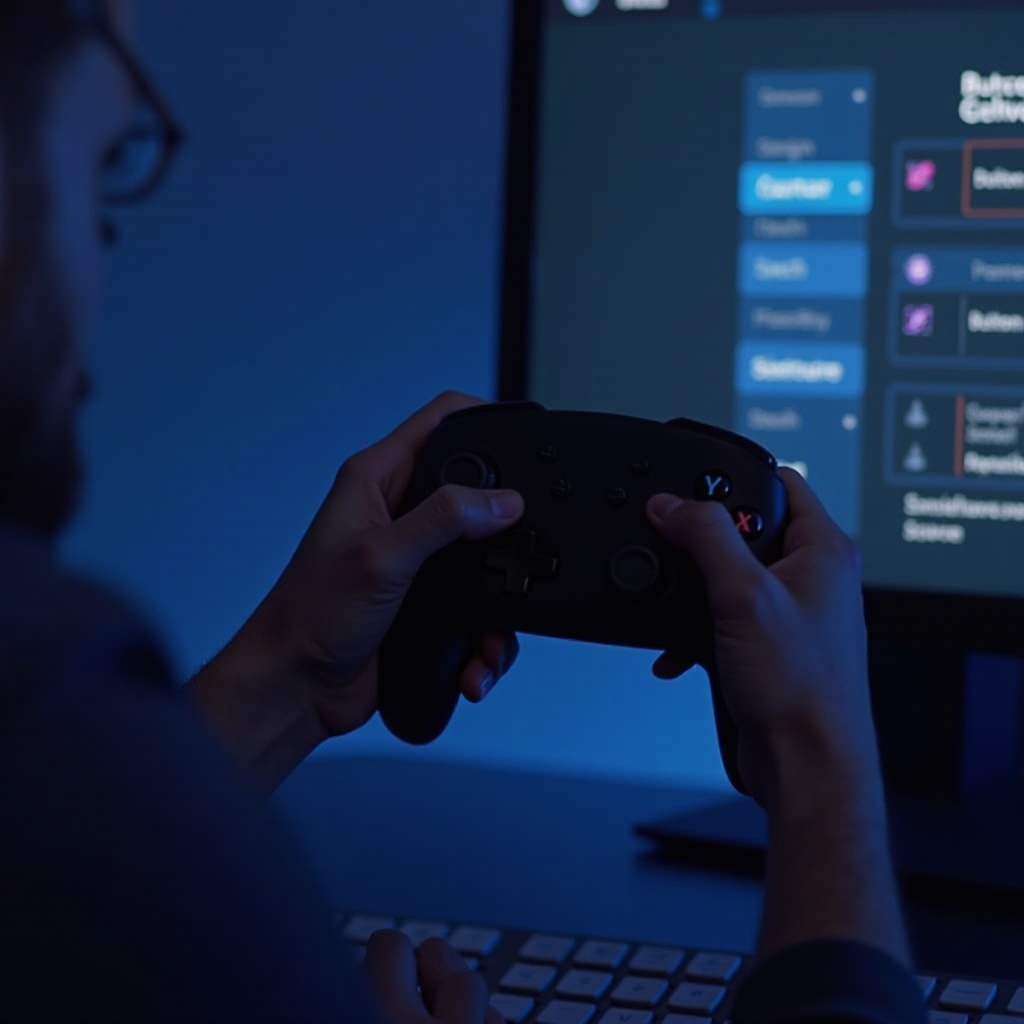
Pros and Cons of Using Switch Controllers on PC
Using Switch controllers on your PC offers several plus points but also some drawbacks.
Advantages
- Ergonomic designs ensure comfort over long sessions.
- Versatility across multiple gaming genres.
- Wireless options eliminate desk clutter.
Disadvantages
- Initial setup can be challenging, especially for non-Windows users.
- Without specific software, compatibility issues may occur.
Understanding these points can help you maximize your gaming setup while anticipating possible issues.
Troubleshooting Common Issues
When using Switch controllers on your PC, certain problems may occur but can be resolved effectively:
Connectivity Problems
- Make sure batteries are charged and Bluetooth drivers are current.
- Ensure controllers are within Bluetooth range and no obstructions cause interference.
Input and Button Issues
- Use Steam’s controller support for correct button functions.
- Verify button mapping in third-party software.
By following these troubleshooting steps, you can overcome most connectivity problems easily.
Conclusion
Nintendo Switch controllers offer an excellent way to enhance your PC gaming experience. With the right setup, software, and troubleshooting, they can integrate seamlessly into your gaming routine, making your time at the computer more enjoyable. Start connecting and customizing your setup and feel the difference in your gaming performance.
Frequently Asked Questions
Can I use Switch controllers for all PC games?
Yes, especially if the games support generic USB controllers. Using Steam enhances compatibility significantly.
Is it possible to use Joy-Cons as a single controller on PC?
Yes, using third-party software like BetterJoy, you can pair Joy-Cons to function as a single controller.
What should I do if my Switch controller won’t connect to my PC?
Ensure your batteries are full, Bluetooth is active, and all necessary drivers are installed. Rebooting the PC often resolves connectivity issues.