Introduction
Integrating Nintendo Switch controllers into your PC gaming setup elevates the experience. The Joy-Cons and Pro Controller, known for their ergonomic design, can enhance your gameplay significantly. Whether playing racing games or first-person shooters, using them on your PC is an exciting endeavor.
This comprehensive guide will show you the steps to pair these controllers with your PC, ensuring a seamless integration. We will discuss controller types, connection methods, software tools for optimization, and common troubleshooting solutions. With these steps, you can enjoy a smooth and enhanced gaming experience.
Understanding Controller Types and Compatibility
Before diving into the connection process, it is crucial to understand the types of controllers and their system compatibility.
Types of Nintendo Switch Controllers
Nintendo Switch offers two primary controllers suitable for PC connections:
1. Joy-Cons: Compact, detachable controllers that can function independently or as a pair, perfect for versatile play styles.
2. Pro Controller: A traditional controller offering a comfortable grip and precise controls, ideal for extensive gaming sessions.
PC Compatibility Requirements
To ensure a successful pairing, your PC must meet certain compatibility criteria:
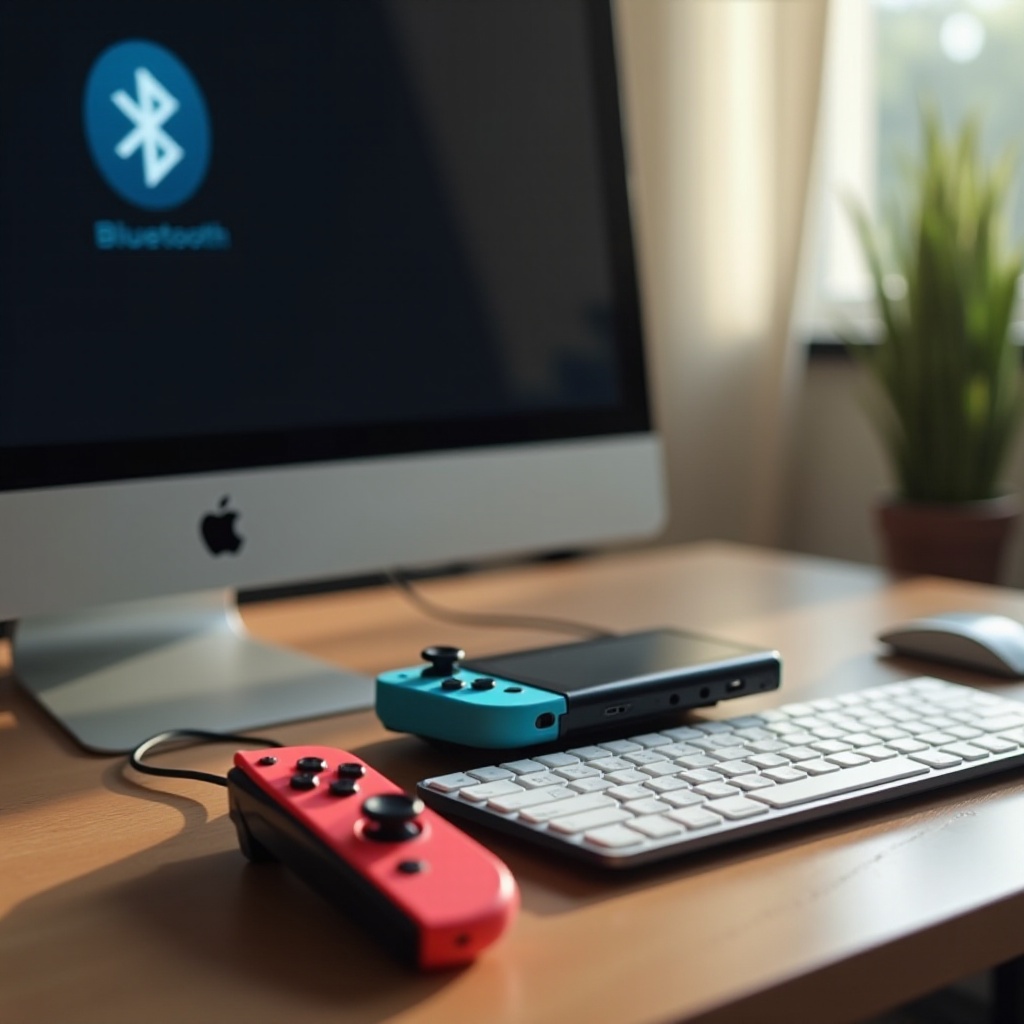
– Bluetooth Support: Most Joy-Con and Pro Controller connections rely on Bluetooth. Confirm your PC has an integrated Bluetooth adapter or is compatible with an external USB Bluetooth adapter.
– Operating System: Windows 10 or later, or recent Linux distributions tend to offer the best support for Nintendo Switch controllers.
Having addressed compatibility, let us explore the connection of Joy-Cons to your PC.
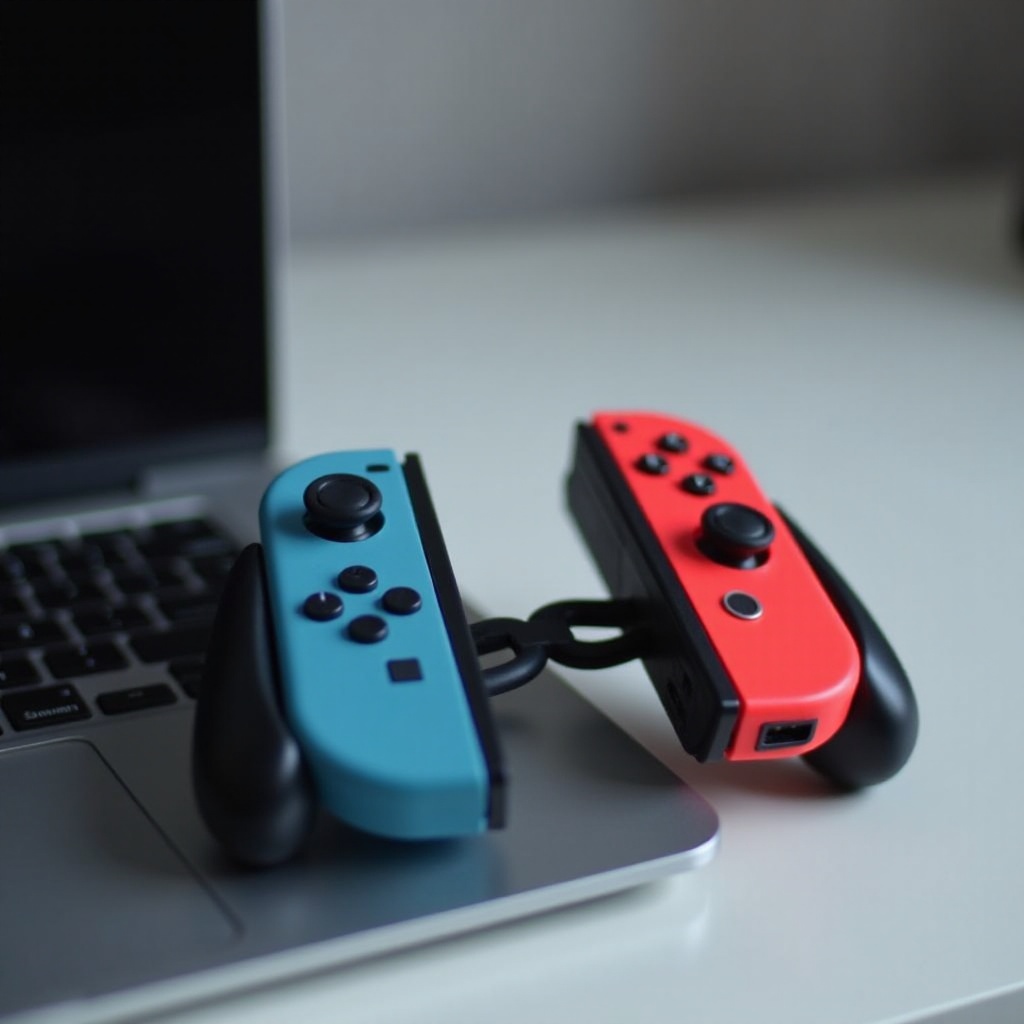
Connecting Joy-Cons to Your PC
Joy-Cons offer a flexible gaming experience and can be connected using multiple methods.
Bluetooth Connection Setup
To connect Joy-Cons via Bluetooth:
1. Activate Bluetooth on your PC through system settings.
2. Press and hold the ‘Sync’ button on the Joy-Con until the LEDs start flashing.
3. Go to your PC’s Bluetooth settings and click ‘Add Bluetooth or other device.
4. Select ‘Bluetooth’ and find your Joy-Con in the list of available devices.
5. Once paired, your Joy-Con is ready for use.
Wired Connection Using USB Adapter
For a stable connection and reduced latency, consider using a USB adapter:
1. Insert the adapter into a USB port on the PC.
2. Follow the adapter’s specific instructions to establish a connection with the Joy-Con.
Having successfully connected the Joy-Cons, let’s proceed to connect the Pro Controller.
Connecting the Pro Controller to Your PC
The Pro Controller offers a traditional gaming feel with reliable connection options both wirelessly and wired.
Establishing a Bluetooth Connection
To pair your Pro Controller via Bluetooth:
1. Ensure Bluetooth is turned on in your PC settings.
2. Press and hold the ‘Sync’ button on the Pro Controller until the lights start blinking.
3. Head to Bluetooth settings on your PC and select ‘Add Bluetooth or other device.
4. Choose ‘Bluetooth’ and locate your Pro Controller from the device list.
5. Your controller is now connected and ready for gameplay.
Wired Connection Using USB-C Cable
A USB-C cable provides the simplest setup for connecting the Pro Controller:
1. Connect the USB-C cable to the Pro Controller.
2. Plug the other end into your PC’s USB port.
3. Wait for the PC to detect the controller automatically, enabling you to start gaming immediately.
Next, we will discuss software tools that can optimize your gaming experience with these controllers.
Software and Tools for Enhanced Gaming Experience
While connecting the hardware is vital, optimizing it with software enhances your gameplay.
Recommended Third-Party Software
Here are a couple of software programs that can expand the functionality of your Switch controllers:
– DS4Windows: Primarily designed for DualShock controllers, it provides wide-ranging customization options which are compatible with Joy-Cons and Pro Controllers.
– BetterJoy: Tailored specifically for Nintendo Switch controllers, providing features like button remapping and gyro control support for specific games.
Optimizing Controller Settings for Different Games
To maximize your gaming experience, consider customizing settings:
– Develop custom button mappings tailored to specific game requirements.
– Adjust controller sensitivity and feedback levels to suit your play style.
– Utilize programmable macros for repetitive tasks in particular games.
Following optimization, it is also essential to understand how to troubleshoot common connectivity issues.
Troubleshooting Common Connection Issues
Despite proper setup, connectivity issues might occur. Address these to ensure a smooth gaming session.
Fixing Bluetooth Pairing Problems
- Verify the controller is in pairing mode, indicated by flashing LEDs.
- Remove previous pairings from your PC’s Bluetooth settings.
- Restart both your PC and controllers to resolve minor connectivity hiccups.
Solving Input Lag and Button Mapping Errors
- Minimize Bluetooth interference from other devices to reduce lag.
- Updating your PC’s drivers can solve mapping discrepancies.
- Check your software settings to ensure no conflicts and consider resetting configurations.
By following these solutions, you should achieve a hassle-free and enjoyable gaming setup.
Conclusion
Your Nintendo Switch controllers should now be successfully integrated into your PC gaming setup. Whether utilizing the Joy-Cons for flexibility or the Pro Controller for comfort, following this guide ensures a seamless and enhanced gaming experience. Dive into your favorite PC games with precision and versatility.
Frequently Asked Questions
Can I use both Joy-Cons as a single controller on PC?
Yes, you can use software like BetterJoy to pair them as a single controller, providing a unified gameplay experience similar to using them on a Switch console.
Do I need to install drivers for the Pro Controller?
Windows typically recognizes the Pro Controller as a standard input device, so additional drivers are usually not required. However, third-party software can offer enhanced functionality.
How can I check if my PC supports Bluetooth for controller connection?
Access ‘Device Manager’ on your PC. Under ‘Network adapters’ or ‘Bluetooth,’ ensure a Bluetooth device is listed. If not, use an external adapter.